
📬
Scheduling & Quotes
Sending Quotes and Invoices
How a job moves from booked to paid, and what happens to the invoice number.
Every job card has a coloured status button at the bottom that changes label depending on where the job is in its lifecycle. Tapping it moves the job to its next stage:
| Status | Button shows | Explanation |
|---|---|---|
| Quote | Send Quote | Tapping this emails a PDF quote to the customer; long-tapping the status again converts it to Scheduled |
| Scheduled | Scheduled | Confirmed with the customer — tapping changes the status to Confirm Booking |
| Confirm Booking | Confirm Booking | Pencilled in but not yet confirmed with the customer — tapping changes the status to Scheduled |
| Send Invoice | Send Invoice | Shown once the job is marked complete and unpaid. Tapping this emails the invoice. |
| Paid Cash / Paid by EFTPOS / Paid Online | Send Receipt | Shown once the job is marked complete and a payment method is chosen. Tapping this emails the receipt. |
| Completed | Completed | Shown once the invoice has been sent and the earnings saved to Admin |
Marking a job complete
- Open the job card.
- Check Job Completed.
- Choose how it was paid: Send Invoice (Unpaid) creates an invoice to be paid later; Paid Cash, Paid by EFTPOS, or Paid Online records the payment and creates a receipt.
- Tap the pink status badge to generate the invoice or receipt.
- In the Process Invoice dialog: Preview the invoice or receipt, tap Send to email it to the customer, tap Process Job (No Invoice) to process the job without sending anything, or Cancel to return to the job card.
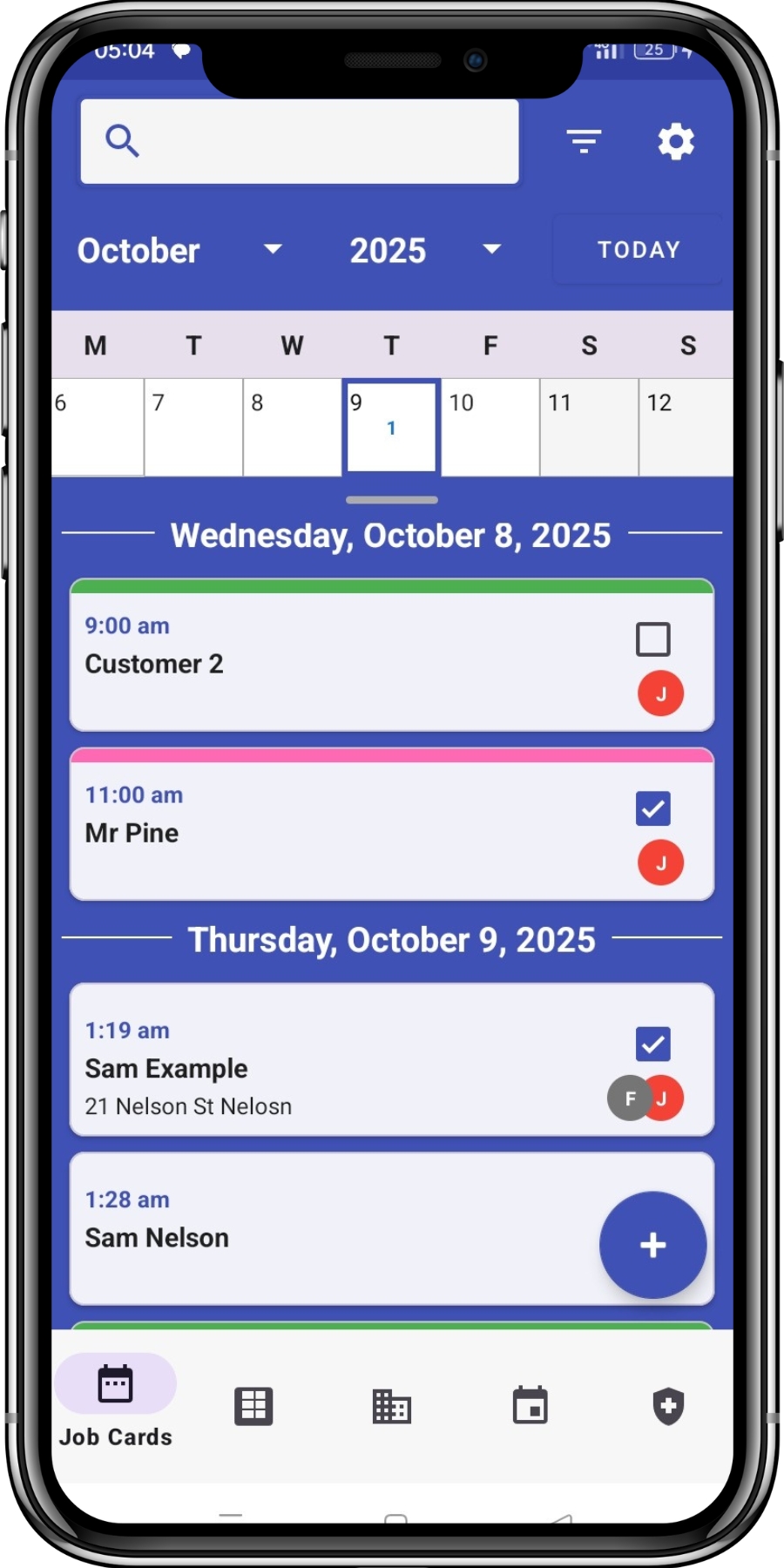
Sending or processing the invoice or receipt creates a new earning in Office Admin. Invoices are saved as unpaid, while receipts are saved as paid. The invoice number increments automatically.
Completed booking protection
Once a job has been completed and invoiced, the booking becomes read-only — protecting the final job and invoice record from accidental changes after processing.