
🚀
Quick Start
Getting Started
Find your way around the app — main screens, the Jobs calendar, and Settings.
Finding your way around
When you log in, you'll land on the Jobs screen. The navigation layout changes to suit the screen orientation.
Portrait and landscape navigation
- In portrait mode, the navigation bar appears along the bottom of the screen. It automatically hides when you scroll down and reappears when you scroll up.
- In landscape mode, the navigation bar is vertical and appears along the left edge of the screen.
- In portrait mode, the Materials icon appears at the top right, immediately to the left of the Settings icon.
- In landscape mode, Materials appears in the navigation bar between Customers and Events.
Main screens
- Jobs – your work calendar and scheduled job cards. Choose a date to see its bookings, use Search to find a customer or job, and tap a job card to open its details.
- Customers – a clickable list of all your customers. Tap a customer to see their details and bookings, or tap + to add a customer.
- Materials – your materials list, stock levels, billing prices, document imports, and QR labels. See Materials for Billing.
- Events – the shared calendar for holidays, leave, reminders, and other company-wide events that aren't tied to a customer job. See Events.
- Safety – Health & Safety documents, accident and near-miss reports, JHAs, safety report exports, and toolbox meetings. See Health & Safety.
- Admin – finances, tax, assets, statements, invoicing, and company settings. This tab is only visible to Admins and the Owner. See Admin Panel: Finances Overview.
Using the Jobs calendar

- In landscape mode, tap a job card to open it on the right side of the screen. The job card covers the calendar while keeping the jobs list visible.
- Each date shows how many jobs are scheduled for that day.
- Public holidays are shown in yellow. Tap the holiday date to briefly display a banner with the holiday name.
- Events created on the Events screen appear as coloured lines that span the length of each event. Tap a date with an event line to briefly display a banner with the event name.
- Tap any date to move the job-card list to the jobs nearest that date.
- Swipe the calendar left or right to change months.
- Use the two drop-down menus to select a different month or year.
- Tap Today to return the calendar and job-card list to today's date.
- In portrait mode, drag the toggle along the bottom edge of the calendar to expand it to a full month or contract it to a single week.
Settings
Tap the ⚙ Settings icon at the top of the Jobs screen to access:
- Your profile, subscription, and connected computers
- Appearance, theme, accent colour, and app-lock controls
- Job-reminder notifications
- Staff accounts and user roles
- Backups, archived jobs, and data import/export tools
- Help, app information, and logout
Common navigation controls
- Use the bottom navigation bar to switch between the main screens.
- Tap the back arrow in the top left to return to the previous screen.
- Tap a customer, job, event, report, or other card to open its details.
- Use Search to quickly find a customer or job.
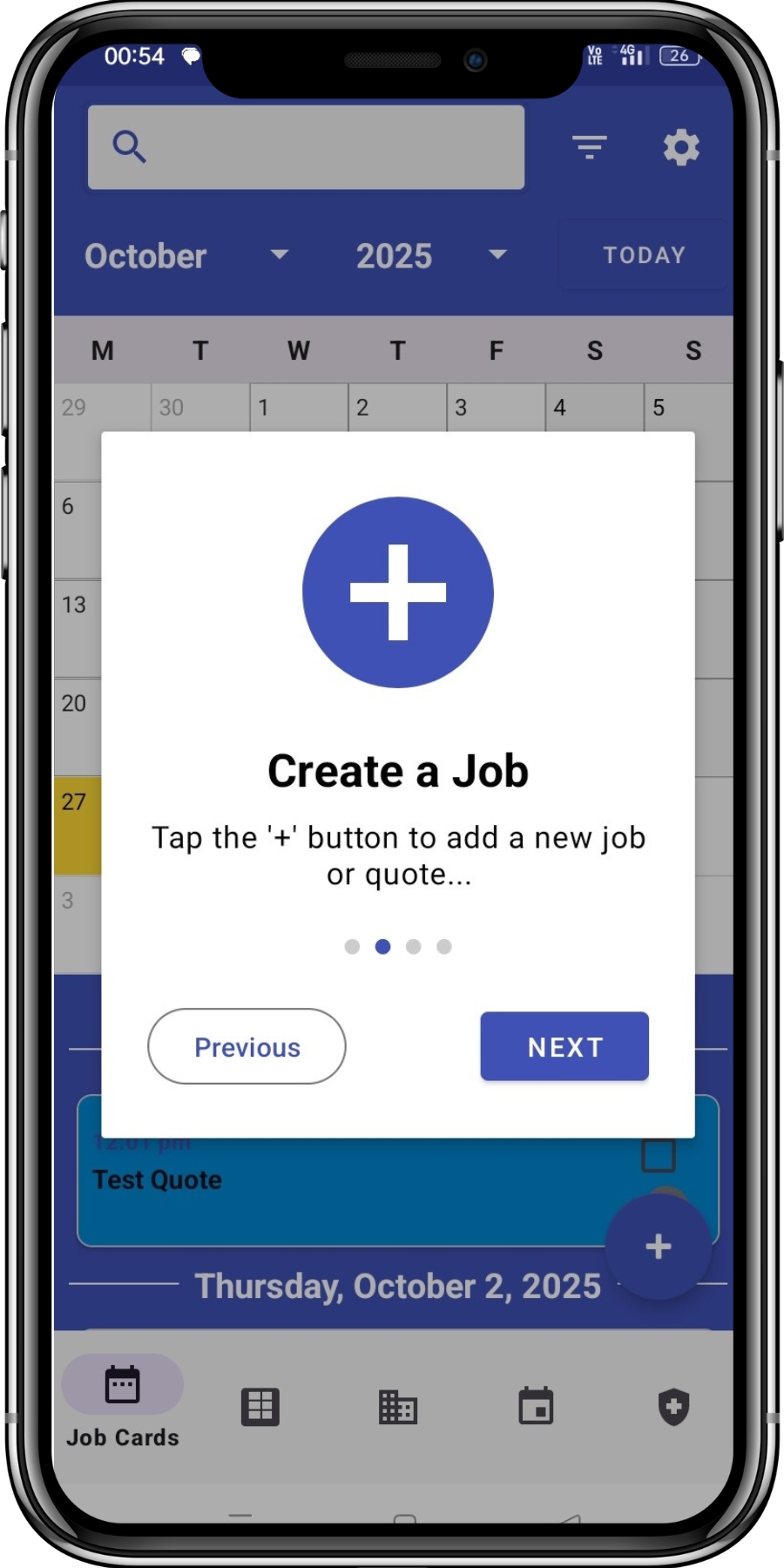
- Tap a + button to create a new item on the current screen.
- Open the ⋮ menu when available to find additional actions and settings.