
Admin Panel: Finances Overview
The Overview, GST, Tax, Assets, and Statements tabs that make up the Admin section.
Open the Admin section from the main app navigation.
Admin navigation
The Admin navigation bar contains Overview, GST, Tax, Assets, and Statements. In portrait view it sits along the bottom (auto-hiding on scroll); in landscape view it's vertical, on the left.
Top actions
- Reconcile (top right) — opens banking transactions to reconcile earnings and expenses against matching bank records. See Bank Accounts & Automatic Reconciliation.
- ⋮ menu — next to Reconcile.
Overview

Year view — the top section shows the financial-year summary: Gross, GST, Net, Expenses, Net Profit. Below is a list of every month in that financial year, each showing incoming funds, outgoing funds, and profit. Swipe left/right to move between financial years; tap a month to open its details.
Month view — the same summary, scoped to the selected month, with income and expense cards organised under tabs: Income, Expenses, Vehicle, Wages, Contractor, Other, Home. Tap Overview to toggle between month and year views.
Adding financial records — tap + to manually add a new earning, business expense, home expense, or depreciable asset. Expenses can be added manually or created through bank reconciliation; when opening or adding one, you can attach a receipt image or document — if the fields are blank, OfficeTidy's AI scans the receipt and fills in the available details automatically. Earnings can be added manually or created automatically when an invoice or receipt is sent from a customer's job card.
Linking an earning to a user — find the earning card, tap the earning name, select Link Earning to User, search for the user, then tap Link.
Invoices and payment reminders — reopen an earning record to resend its invoice; for an unpaid invoice, tap the envelope icon on its earning card in month view to send a payment reminder.
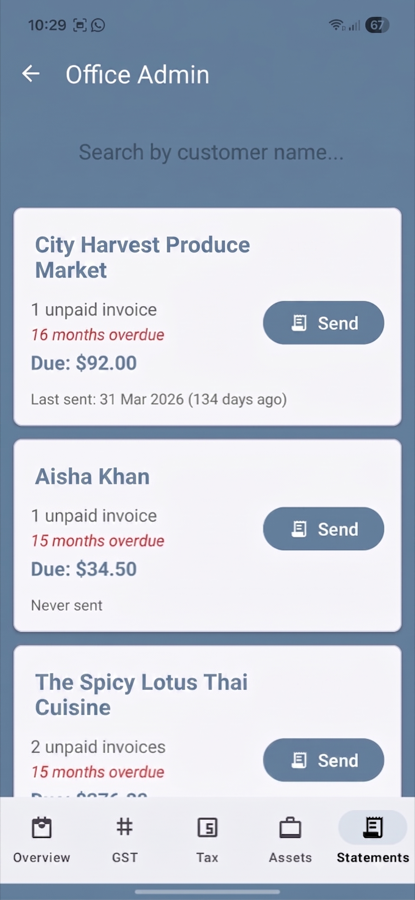
GST
The top of the GST tab shows GST Collected, GST Paid, and Net GST Position for the selected financial year, followed by one card per GST reporting period. To enable GST filing, open Admin Settings and connect OfficeTidy to IRD — see IRD Integration.
Tax
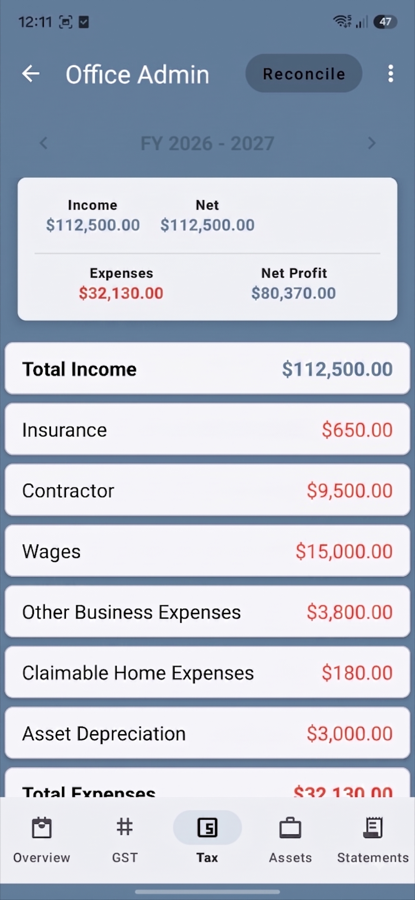
Shows Income, Net, Expenses, and Net Profit for the selected financial year, with details sorted by item depending on whether the business is a Sole Trader, Company, or Partnership. For Sole Traders, IR3 filing is available once connected to IRD.
Assets
Shows Total Assets, Opening Value, Depreciation Claimed, and Current Book Value, followed by a list of individual assets (name, purchase price/date, depreciation rate/method, description, and flags for Investment Boost / low-value pooling / vehicle apportionment). Each asset includes a three-year depreciation projection. See IRD Integration for how the automatic calculations work.